 Everscroll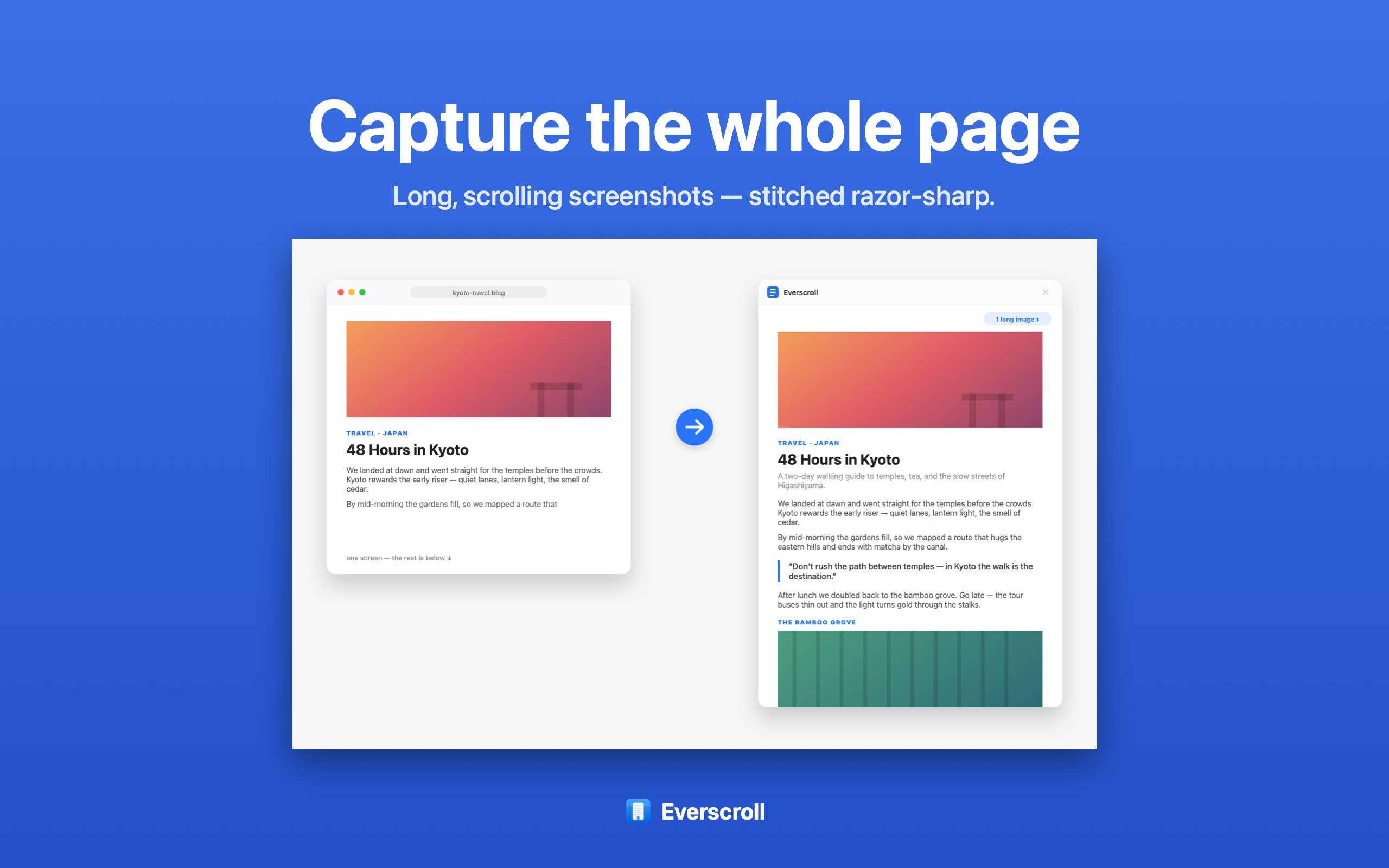
Why long screenshots are hard on Mac
macOS screenshot shortcuts are fast for the visible screen, but many useful things do not fit inside one viewport. A support conversation might run for hundreds of messages. A research page can be several screens tall. A receipt, dashboard, documentation page, or design review thread often needs the context before and after the visible area. That is where a scrolling screenshot tool is useful.
Everscroll is designed for that job. Start a capture, choose the area, then scroll naturally. The app stitches the moving content into one tall image and keeps the workflow local. When the capture is done, you can copy it, save it, annotate it, extract text, redact private details, or split it for sharing.
How to take a scrolling screenshot
- Open the page, chat, document, or app window you want to capture.
- Launch Everscroll from the menu bar and start a scrolling capture.
- Drag over the content area you want to keep.
- Scroll through the content at a steady pace while Everscroll builds the long image.
- Save, copy, export, or continue editing when the capture is complete.
Tip: long screenshots are best when the content area stays stable while you scroll. Close popups, keep the cursor away from hover menus, and capture the narrowest useful region.
Best uses
Research
Save the full context of a web page, documentation page, or long answer.
Support
Capture a whole chat or bug report thread before sharing it with a teammate.
Proof
Archive receipts, dashboards, listings, and multi-step workflows as one image.
Related workflows
After the screenshot is captured, Everscroll can turn it into a searchable PDF or split the same long image into a social carousel. For privacy details, read the Privacy Policy.