 Everscroll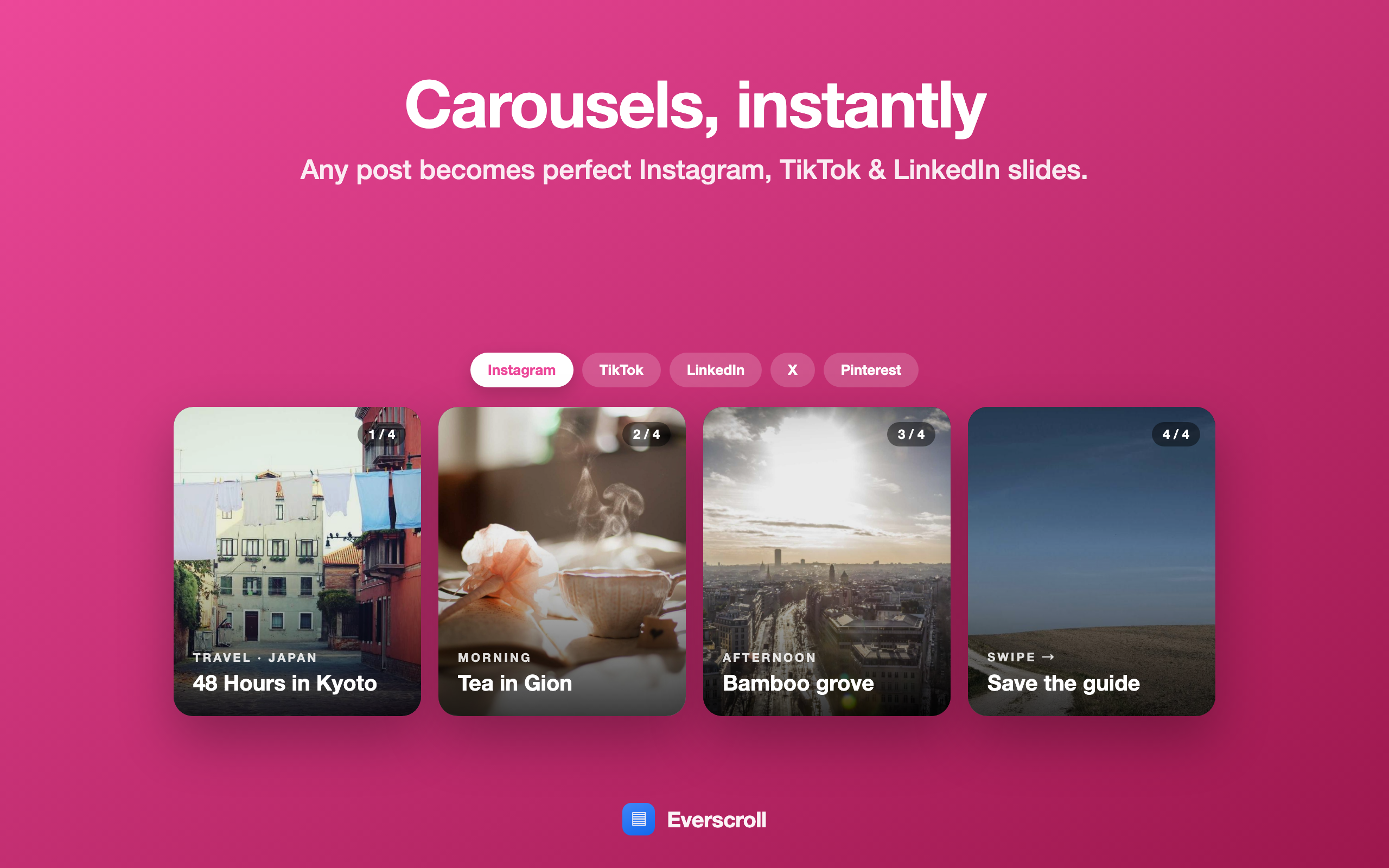
Carousels start with too much vertical content
Many creator posts begin as something long: a tutorial, a chat, a web page, a product update, a checklist, a before-and-after explanation, or a research note. The problem is that social platforms prefer slides, not one huge image. Manually slicing a tall screenshot is slow, and it is easy to cut through a line of text or create slides that feel uneven.
Everscroll lets you capture the source material once and split it into a carousel. Pick the platform preset, review the slices, and export a tidy set of slides. It is useful when you want the original context of a long screenshot, but the final post needs to be swipeable.
How to create carousel slides
- Capture the page, document, chat, or workflow as a long screenshot.
- Open the carousel export workflow in Everscroll.
- Choose the platform size you want to target.
- Review the generated slide breaks and export the image set.
- Post the slides in order on your chosen platform.
For the cleanest slides, capture content with comfortable spacing and avoid placing critical text exactly at likely page breaks.
Where this helps
Tutorials
Turn a long how-to, code walkthrough, or product workflow into swipeable steps.
Creators
Repurpose a long note or screenshot into a post without rebuilding it in a design tool.
Teams
Share long internal context as slides that are easier to scan on mobile.
Related workflows
Need the original capture first? Read the scrolling screenshot on Mac guide. Want an archive instead of slides? Turn the same capture into a searchable PDF.