 Everscroll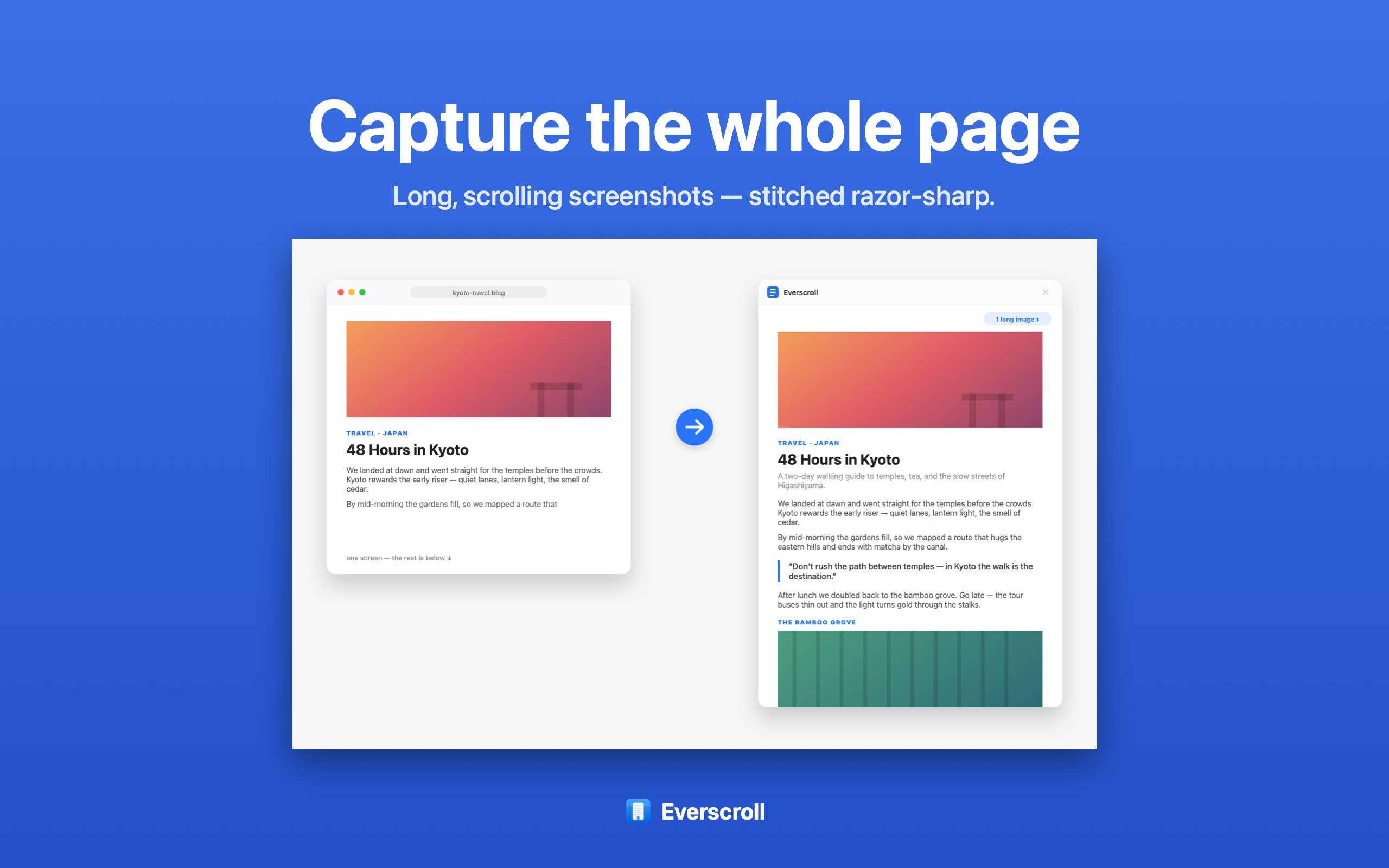
When Safari's visible screenshot is not enough
A Safari page often contains more context than one screen can hold: documentation, receipts, long articles, research pages, dashboards, and product pages. A visible screenshot loses the rest of the page. A PDF printout can be useful for archiving, but it does not always preserve the visual state you want to share.
Everscroll gives you a screenshot-first workflow. Capture the page as one long image, keep it local, then choose the output that fits the job. You can paste the long screenshot into a note, export a searchable PDF, extract the text, blur private details, or split the page into carousel slides.
How to capture a Safari full page screenshot
- Open the Safari page and close popups or cookie banners that should not appear in the capture.
- Start Everscroll from the menu bar and drag over the page content area.
- Scroll through the page at a steady pace while Everscroll stitches the long screenshot.
- Review the result, then copy, save, export PDF, extract OCR text, or create carousel slides.
For the cleanest capture, keep the Safari window stable and avoid hover menus while scrolling.
Related workflows
Need a general Mac capture guide? Start with scrolling screenshot on Mac. Need the page searchable later? Use screenshot to searchable PDF.